A chair listing can have every field filled and still show the wrong dimensions. The page looks ready to sell, but a buyer cannot rely on it to judge whether the chair fits their space. Assessing product data completeness means checking both whether the needed facts are present and whether they are correct for the item being sold.
Key takeaways
- Choose the details each product and sales channel needs. A chair's width may matter to your buyers even when it is optional in Google's feed.
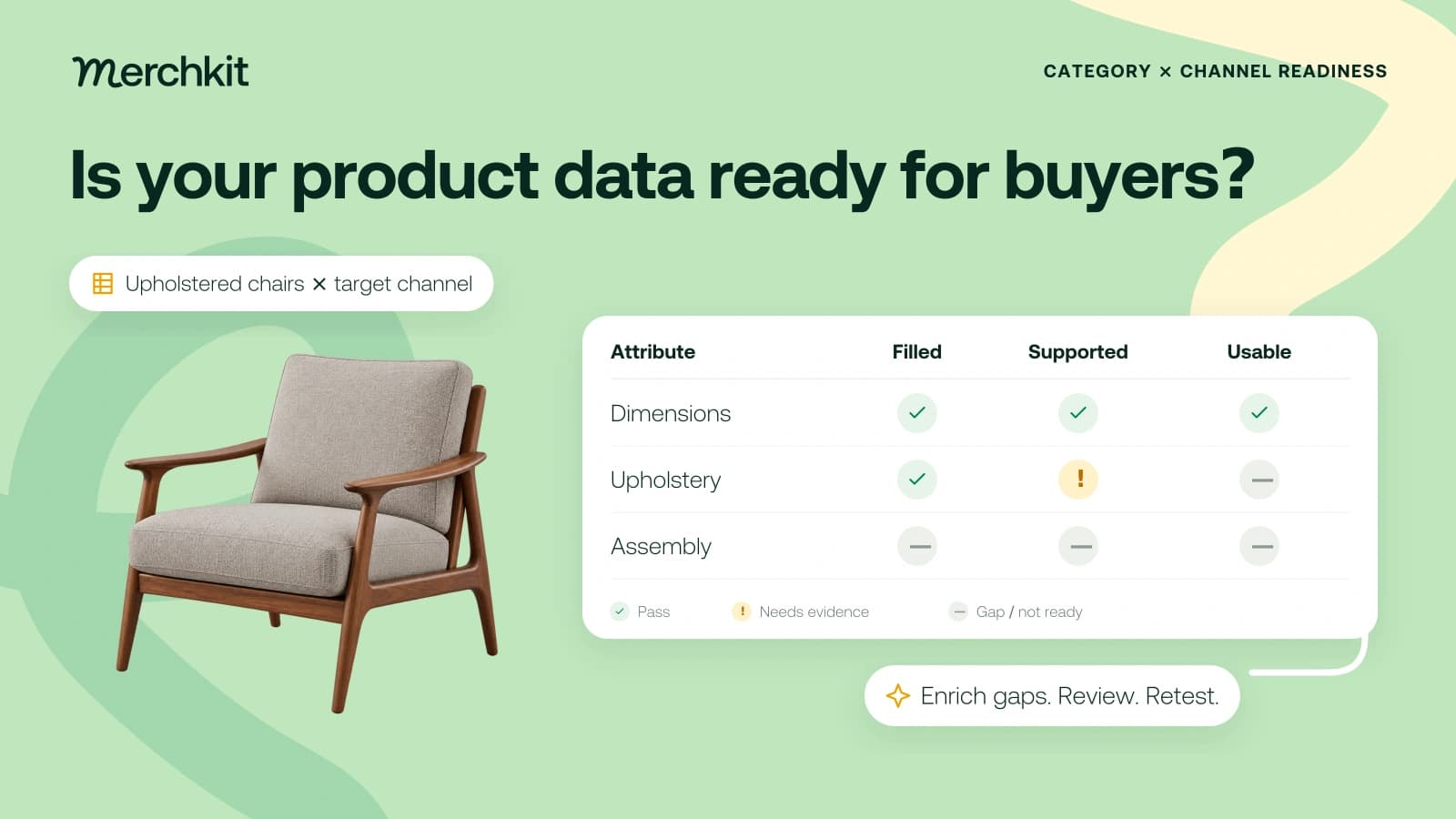
- Ask three questions: Is the value there? Is it supported for this exact product? Does it meet the channel rules you checked?
- Give each problem a clear repair task and owner. Fix misleading product facts and blocking channel errors before adding optional descriptive detail.
Start with one category, such as upholstered chairs, and the places you want to sell it, such as your website and Google Shopping. The result should tell your catalog team exactly what to fix before handoff. A single "percent complete" score cannot explain whether the remaining problem is a blank field, a wrong measurement or a formatting error.
Start with category and channel rules
Define the products and sellable variants you are checking, along with the country, language and destination. Here, destination means the website, marketplace or advertising channel receiving the data.
Your website may need chair dimensions for filters and buying decisions. Google adds its own feed rules. Record which requirement comes from your team and which comes from the destination, so a local merchandising choice is not mistaken for a platform policy.
The matrix below shows how those checks differ by category and destination. It is a starting point, not a complete requirement list. For Google's current rules, use the product data specification for your products and target market. Our product feed optimization guide covers the wider feed workflow.
| Category | Owned product page rules | Google Merchant Center checks |
|---|---|---|
| Industrial fasteners | Define applicable diameter, thread, length, material and sell unit fields from manufacturer documentation. | Apply destination requirements. Where useful, map confirmed additional specifications to product_detail. |
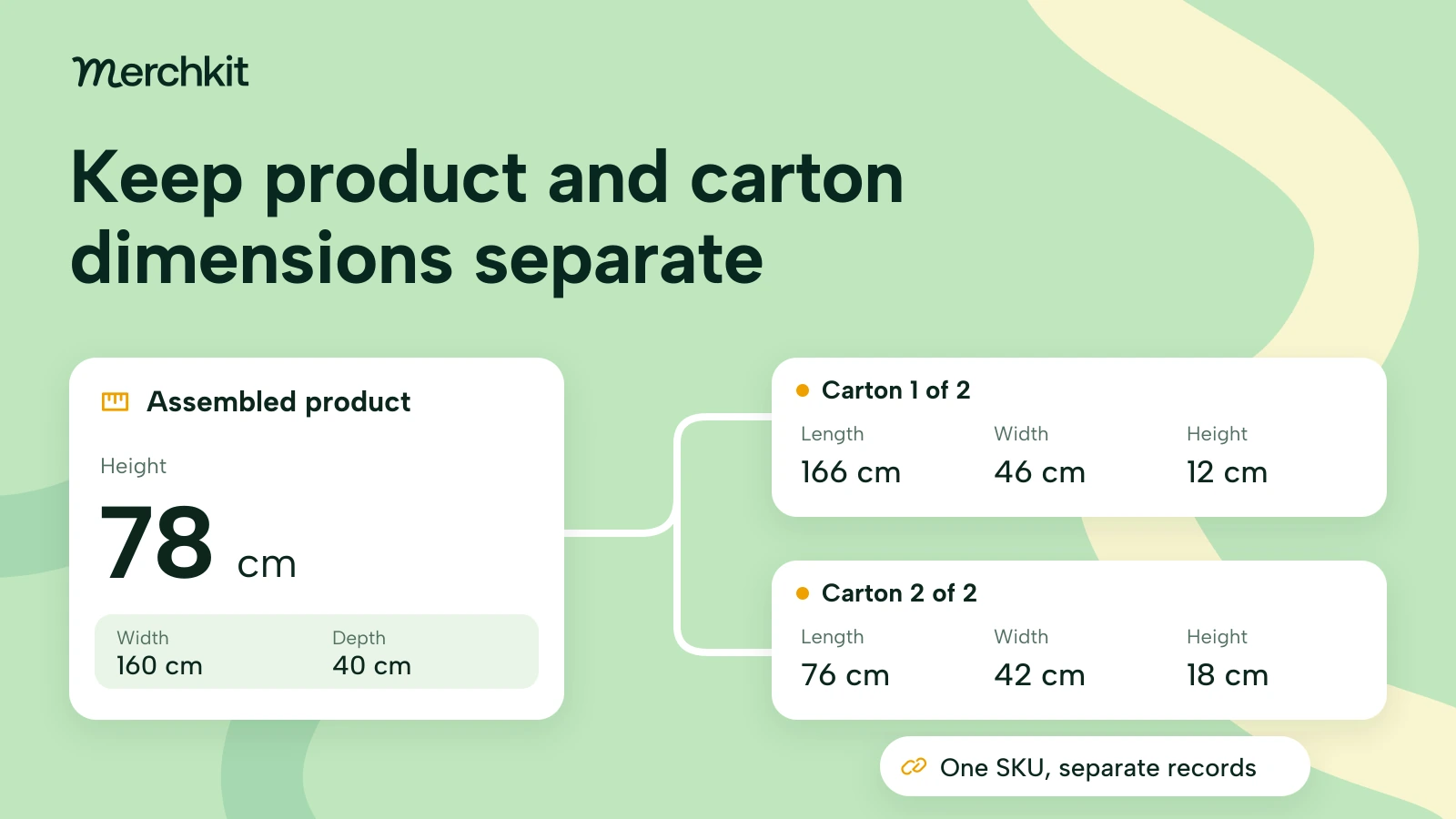
| Upholstered chairs | Define variant-specific dimensions, upholstery, finish and assembly information. Separate product and package measurements. | Apply destination requirements and variant grouping rules. Check optional product dimensions if submitted. |
Google lists product_detail, the field for additional specifications, and product dimensions as optional. Values in product_detail must be confirmed. Optional does not mean unhelpful: your own chair page may still need dimensions so a buyer can compare it with the space they have.
Apply the same care to product groups. Related items are not automatically variants of one product. Check the item group ID rules before grouping them, so your catalog structure matches Google's requirements.
Count only the fields that apply
Check each product detail separately for each destination. For one chair's Google listing, width is one check and height is another. Your website may need additional checks.
Mark why each field is included: required by the destination, required only in certain cases, or selected by your team. Keep those groups separate in reports. Filling optional copy should not hide a missing field that blocks a channel submission.
Twelve chair variants with eight details to check give you 96 checks. That total is the denominator: the number you divide by when calculating a percentage.
If different products need different fields, add their individual counts instead of giving every product the same template. Otherwise, the percentage can change simply because the checklist does not fit the products.
A metal bracket does not need a seat-upholstery field, so exclude it. A fabric chair with unknown upholstery composition still has a missing answer. Removing that field because the supplier has not supplied it would make the score look better without improving the listing.
Agree which fields apply before reporting a percentage. Save the date and version of the checklist. When you compare the next review, you can then tell whether product data improved or the requirements changed.
Check presence evidence and format separately
Ask three questions about every field:
Is there a usable value? This is the populated check. A placeholder such as "TBC" does not answer the buyer's question.
Is it right for this product? This is the source-supported check. The evidence must support the selected SKU or variant, not merely a similar chair.
Does it meet the rules you checked for the channel? This is the destination-valid check. A correct measurement still needs the required units, allowed format and any relevant consistency with the landing page.
Record pass, fail or not reviewed for each question, plus the source, its date and the variant identifier. A width copied from a sibling chair may be a perfectly formatted number and still mislead a buyer about this chair. That is why the evidence check stays separate from the format check.
Keep the destination's processing feedback as well. Your local checks cover only the rules you tested; passing them does not guarantee that the destination will approve the listing.
See what a high fill rate can hide
Here is what that separation reveals in an illustrative review of the 12 chair variants and 96 field positions:
92 populated values: a 95.8% fill rate.
78 source-supported values: 81.3%, after finding eight wrong-variant dimensions and six unsupported fabric claims. These findings do not overlap.
74 values passing all three checks: 77.1%, because four of the supported values also fail the selected destination format checks.
The category started at 95.8% filled, but only 77.1% of positions passed all three checks. That difference is work the team would miss by counting blanks alone.
These are example calculations, not publication thresholds. A wrong dimension can distort a buyer's fit comparison even if every other field passes.
Review records likely to reveal errors
Use automated checks for missing values and predictable formatting rules across the selected records where possible. Spend manual review time on whether the facts mean the right thing.
Start with new suppliers, changed templates, copied variants and conflicting sources. Include some records that look clean too, to check whether the process overlooks errors.
This is a risk-based sample: you are choosing records likely to reveal problems. It can show what goes wrong, but not how common those problems are across the whole catalog. Record why you chose the items and report findings only for the reviewed group.
If one chair inherited a sibling's width, check the other records created by the same copy or import rule. The cause may affect a batch rather than one listing.
Treat technical suitability, load ratings and compatibility as separate evidence questions. A similar model or matching dimension does not establish those claims; they need manufacturer support and qualified review.
Build a repair queue your team can use
Fix values that describe the wrong product, unsupported safety-related claims and blocking channel errors first. Then consider which launches depend on the repair, how many products it affects and how important the detail is to buyers.
A shared import rule that swaps product and package dimensions may deserve attention before isolated blanks, because correcting it can address the same error across several records.
Write a task someone can complete, rather than a note that says "fix dimensions." For example: "Check the widths for these eight chair variants against their drawings, assign a reviewer, and rerun the width check after correction."
Include the affected products, destination, field, problem, evidence needed, owner and the condition for passing the retest. Resolve conflicting sources before generating replacement copy.
After the repair, rerun the same checks on the same products. Report what was corrected and what remains unresolved, so the launch team knows which records still need attention. Measure traffic and revenue separately; this data audit alone cannot show that corrections caused a commercial change.
How this gets done in Merchkit
Merchkit helps turn audit findings into product details your team can repair and review in bulk. Instead of rebuilding a spreadsheet or prompting separately for each blank, you can focus on the affected products and reuse instructions for the missing information.
Focus on the products that need work. Use product views and filters to select a category, supplier or launch batch. Put the fields under review together, such as chair width and height, so the team can inspect the relevant values side by side.
Set the repair instructions once. For enrichment, the step that generates proposed product details, specify which sources and facts to use, what format to produce and which values are allowed where appropriate. For a dimension, make clear whether you need the assembled product or its shipping package.
Prepare the missing values. Generate empty attributes across selected products while retaining existing values. The output gives reviewers proposed answers to check, rather than making each person research and type every blank separately.
Review what supports each answer. Inspect the explanation and source context, particularly for low-confidence results, and resolve unsupported values. Export the reviewed records, keeping factual checks and channel requirements in the handoff. A newly filled cell is still a proposal until it has been checked.
Book a Merchkit demo with one category and a target destination to see how your repair workflow could become a repeatable catalog process.