When you're adding valves to an industrial catalog, it's tempting to copy the highest pressure and temperature from the supplier's table. But those numbers may describe different conditions. A buyer could see both on the product page and assume the valve supports them together. Keep each pressure rating with the temperature and product options it applies to, so buyers can compare the right information before checking whether the valve suits their system.
Key takeaways
- Keep each working pressure with its stated temperature. A valve's highest pressure and highest temperature may not apply together.
- Keep the product options and supplier notes with the rating, so buyers can tell which version it describes.
- Check what your filters, comparison tables and generated descriptions show. They shouldn't combine numbers from different rows into a new claim.
A pressure rating is more than a number
When a supplier gives you a table of pressures at different temperatures, keep those pairs together in your catalog. If you save just the highest pressure, the buyer loses the condition that explains when that figure applies.
For example, Swagelok's 60-series ball-valve catalog separates ratings by seat material, valve series, body material and flow pattern. Its notes also describe construction details and warn that alternative materials may have different ratings. Before copying a number, check the row, column heading and notes for the version you sell. Otherwise, your listing could show a rating for a different valve. Swagelok 60-series catalog, pages 6 and 7
The same care is needed when listing hose. Parker's guidance for PVC and thermoplastic hose and tubing shows that available working pressure falls as temperature rises. The chart expresses pressure as a percentage of the room-temperature rating. If you publish that room-temperature figure without its condition, buyers may think it applies at the higher temperatures listed on the page too. Parker temperature-pressure guidance, page 192
Use each manufacturer's guidance for the product it covers. A table for one valve or hose family doesn't give you a rating rule for another.
Keep the rating and its conditions in the same record
As you copy a supplier rating into your catalog, give the reviewer enough detail to check it without guessing which product or table row you meant:
Identify the product: include the manufacturer, complete part number and options, such as the seal material.
Keep the rating's label: if the supplier calls it working pressure, don't shorten it to a vague "Pressure" field.
Record the pressure and temperature together: keep both units and show whether the temperature is one point or a stated range.
Keep the supporting notes: include applicable materials, service conditions, footnotes, source page and revision.
A supplier may list working pressure, test pressure and burst pressure in the same unit. Keep them in separate fields with their original labels. A buyer comparing working pressure should never be shown a test or burst figure as if it meant the same thing.
You can expand an abbreviation to make a listing easier to read, but don't drop a condition such as "at 20°C." Keep the supplier's original wording beside your cleaned-up fields. If a condition won't fit your usual fields, add a reviewed note or linked table rather than leaving it out.
For the earlier step of matching values to the correct item, see extracting product attributes from supplier spec sheets.
What goes wrong when you pick the highest numbers
Suppose you're adding valve V-100 with seal option A to your catalog, and its supplier table lists these two rows:
| Item and configuration | Stated temperature | Working pressure |
|---|---|---|
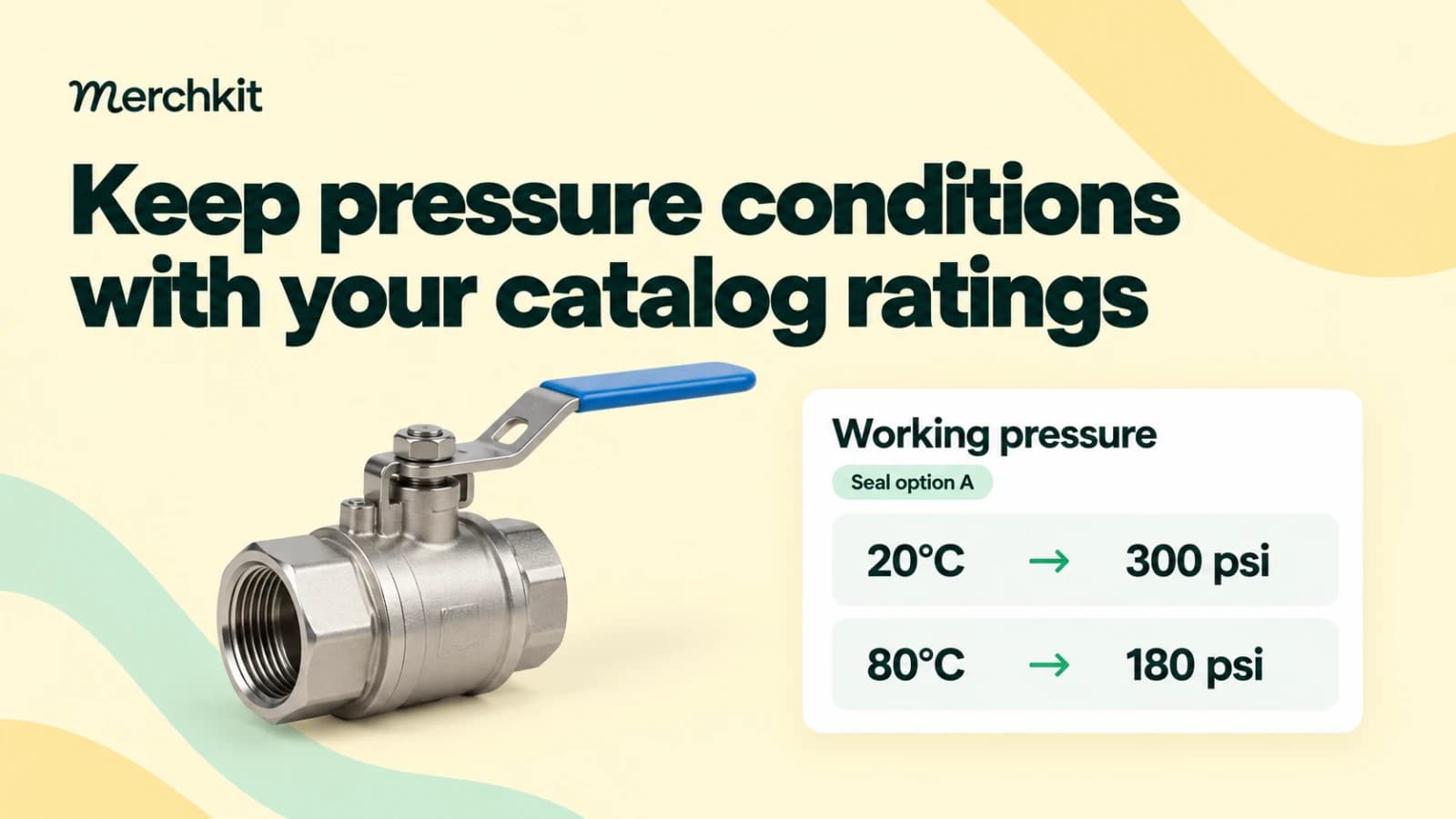
| V-100, seal option A | 20°C | 300 psi |
| V-100, seal option A | 80°C | 180 psi |
Use the manufacturer's verified ratings when selecting a valve. This example shows how to organize the catalog data.
If your import takes the highest number from each column, the product page could say:
"Working pressure: 300 psi. Temperature: up to 80°C."
Now imagine a buyer filtering for at least 250 psi at 80°C. This listing could look like a match, even though the table only states 180 psi at that temperature. Both numbers were copied correctly, but putting them together changed what the page tells the buyer.
Keep the pairs together instead, so the summary reads:
"Working pressure for seal option A: 300 psi at 20°C; 180 psi at 80°C. See the supplier's full rating table and qualifications."
These two rows don't tell you the rating at another temperature or for a different seal. Leave those answers to the manufacturer's verified information. Your catalog should preserve what the source says, not calculate new operating limits or decide whether the valve is suitable.
Check what buyers see after they apply filters
A buyer may never read the full description before using your filters. If the pressure filter reads 300 psi and the temperature filter reads 80°C, the example valve could still appear when they select both. Make sure the values used together are supported by the same source statement.
Where your storefront allows it, show the temperature beside the pressure in filters and comparison tables. "Working pressure at 20°C" tells the buyer more than "Maximum pressure." Include the relevant seal or other product option too, so buyers know which version the rating covers.
If a channel only accepts one number, check the mapping before you send it. Don't rely on a note buried in a PDF to correct a claim that the buyer has already seen in a comparison table.
When generating product descriptions, give the tool the reviewed pressure-and-temperature statements, rather than separate lists of numbers. Then read the result as a buyer would. Phrases such as "up to 300 psi across the full range" can quietly turn separate ratings into a claim the supplier never made.
These checks help you present the supplier's information accurately. Buyers still need to verify compatibility, installation requirements and safe operating conditions for their own system.
Try a few difficult products before updating the whole catalog
Before applying the process to a full supplier file, try a product with a temperature-dependent table, one with a note that applies only to certain options, and one with a condition you can't yet confirm. These cases show whether your catalog can keep the important details together.
Compare each supplier entry with the catalog fields and the text buyers will see. Is the temperature still beside the right pressure? Does the rating belong to the version you sell? If the source leaves something unclear, check that the import or generated description hasn't filled the gap with zero, "unlimited" or a guess.
Leave an unclear rating out of approved product claims until you can confirm it. That may mean keeping a field blank for review, but it avoids giving buyers a confident answer the supplier hasn't provided. Repeat the check when the supplier changes the specification or you start selling a different configuration.
How this gets done in Merchkit
If your team is repeating these checks across supplier files, bring one rating table and a small product sample to a Merchkit demo. Use them to see where the preparation work could be reduced and where your reviewers still need to make the call:
Start with the right source. Match the table to the product and options you sell, and keep its notes with it. Your reviewer should be able to check the rating without hunting through separate files.
Set instructions you can reuse. Explain once which rating, pressure, temperature and conditions you need to capture. Ask to see how those instructions can be reused across products instead of being rewritten for each item.
Test products with missing details. Include a missing condition and a rating that applies to only one seal option. Check whether the proposed workflow reduces copying while leaving unsupported answers for review.
Review the final listing. Compare the proposed fields and description with the supplier's table, then check the storefront filters separately. A correct description doesn't mean the filters are using the numbers correctly.
Book a Merchkit demo with a pressure-temperature table to explore a catalog workflow that keeps ratings and their conditions together.