A supplier CSV can update the wrong products even when its columns are mapped correctly. Two drill bits may share the title “cobalt jobber drill,” while their diameters and manufacturer codes differ. If your catalog team matches by title alone, the smaller bit could inherit the larger bit’s specifications. Buyers then see a filter or product page that describes something other than the item they can order. Match each supplier row to a confirmed catalog record before applying its updates.
Key takeaways
- Match product records separately from mapping columns. A correct destination field does not prove you have the right product.
- Keep supplier codes, manufacturer part numbers and your internal SKUs distinct. Use a reviewed crosswalk to connect them.
- Hold missing, conflicting and duplicate matches for review. An unmatched row is not automatically a new product.
Separate three jobs that often get called mapping
Row matching answers: which product does this supplier row describe? Column mapping answers: which field should receive its value? Channel mapping prepares that reviewed information for a destination’s format.
Linking Diameter_mm to your diameter field solves the second job, but does not establish whether row 27 belongs to the 6 mm or 8 mm drill bit. A marketplace export cannot repair that wrong match upstream.
Keep a crosswalk between supplier codes and yours
A crosswalk is a small reference table connecting an approved supplier identifier to the product record you maintain. Reuse it rather than comparing titles for every supplier update.
Record the supplier, supplier item code, manufacturer, complete manufacturer part number, your internal SKU and the evidence used to confirm the relationship. Include the variant and selling unit where they distinguish the item. For example, a single drill bit and a supplier’s ten-piece pack should not silently resolve to the same offer.
The supplier matters because a code such as 00421 can occur in more than one supplier’s file. Keep the supplier identity beside the code rather than treating the number as universally unique. Likewise, a manufacturer part number belongs with its manufacturer, not in an unqualified field called “ID.”
Where a supplier provides a GTIN, check that it belongs to the exact trade item. GS1 defines a GTIN as identifying a predefined trade item that can be priced, ordered or invoiced. Do not substitute a family-level label for that identity. GS1’s GTIN definition
Preserve the original identifier as text. Removing a leading zero, suffix or punctuation mark to make codes look consistent can change the match. Make any supplier-specific cleanup rule explicit and test whether it makes two previously different codes identical.
Work through ambiguous rows before updating anything
The following fictional example shows a distributor receiving a drill-bit update. Both manufacturer part numbers belong to one fictional manufacturer, Forge Tools. Supplier names, codes and catalog records are invented; this is a review method, not a Merchkit test result.
| Incoming row | Existing evidence | Decision before import |
|---|---|---|
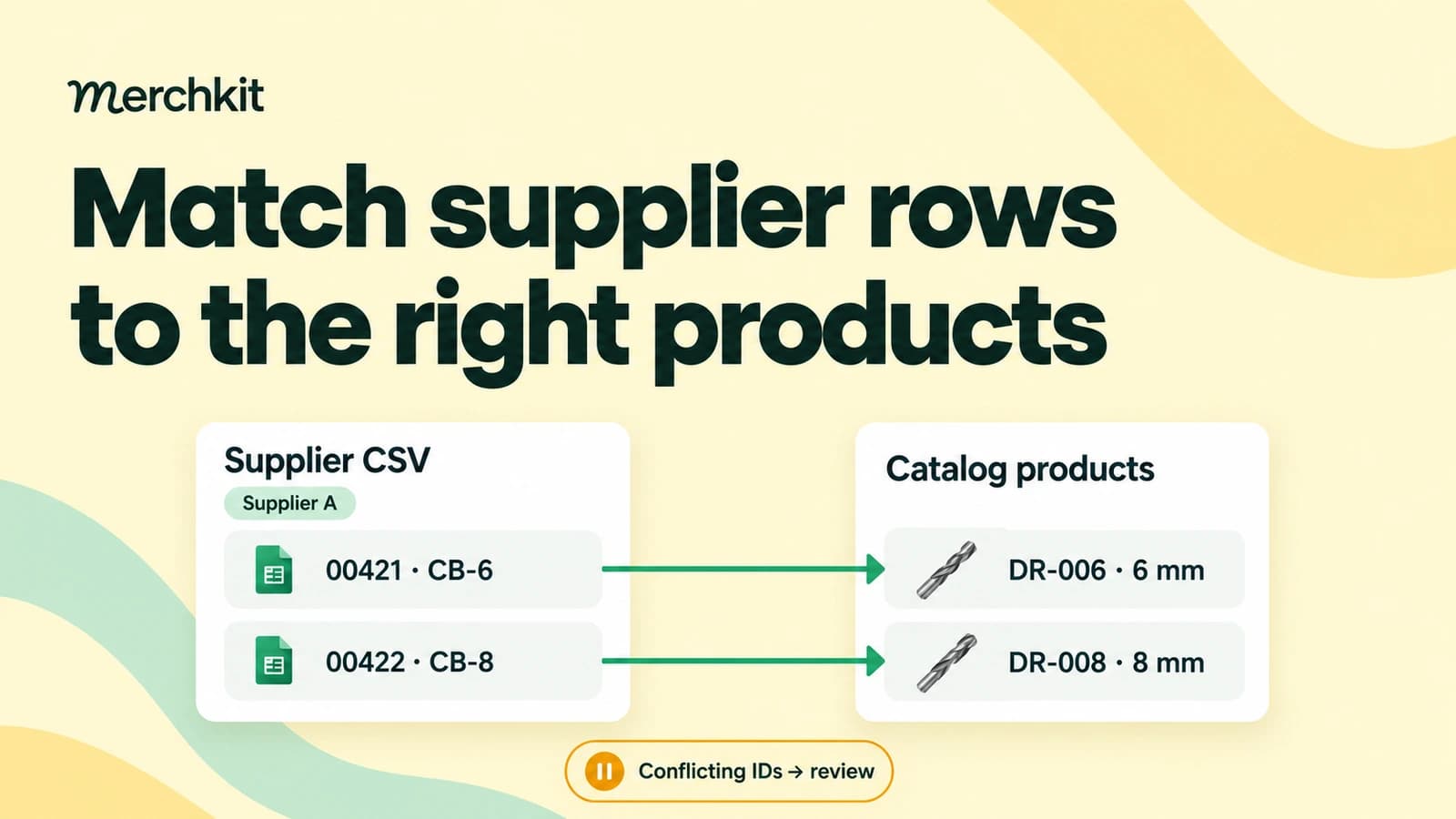
| Supplier A, code 00421, MPN CB-6, title “Cobalt jobber drill” | Approved crosswalk links this supplier/code to internal SKU DR-006, manufacturer MPN CB-6 | Candidate update for DR-006; check the proposed changes |
| Supplier A, code 00422, MPN CB-8, same title | Approved crosswalk links this supplier/code to DR-008, MPN CB-8 | Candidate update for DR-008, not DR-006 |
| Supplier B, code 00421, no manufacturer part number | No approved link for Supplier B | Hold; Supplier A’s matching number is not enough |
| Supplier A, code 00421, MPN CB-8 | Supplier/code points to DR-006, but the incoming MPN conflicts | Hold both the match and the update; resolve the conflict |
The last row is the important exception. An exact code match is useful evidence, not permission to ignore a contradictory part number. Ask whether the supplier corrected a mistake, reused a code or sent the wrong row. Do not choose whichever field makes the import easiest.
If two rows resolve to one catalog record, compare their values before combining them. Identical duplicate rows and conflicting updates need different treatment. If one row resolves to several records, check whether your catalog has duplicate records or whether the row describes a family rather than a sellable variant. Keep these exceptions out of the update batch until someone resolves them.
Title similarity can help a reviewer find candidates when identifiers are missing. It should not authorize an automatic update: two titles can differ while describing the same item, or match while describing different sizes.
Decide what changes after confirming the match
Once the identity is confirmed, prepare a change preview showing the internal SKU, field, current value, proposed value and source. A row might correctly match DR-006 but contain an empty diameter cell. That blank could mean “not supplied,” not “delete the diameter we already checked.”
Define blank-cell behavior before importing, and verify it for the actual tool and import route. In Shopify’s product CSV workflow, for example, product values can be overwritten when their handles match and the overwrite option is selected. A blank non-required column can clear its saved value, while omitting that column preserves it; including a dependent field while omitting its required companion columns can delete existing variant data. These are Shopify-specific rules, not universal CSV behavior. Shopify’s CSV overwrite guidance
Keep the reconciliation table separate from the destination’s upload file. Review columns such as “match reason” may be valuable internally but are not automatically valid fields in a channel template.
Test the exceptions and check the result
Before a large update, save the original file and a recoverable snapshot of the affected catalog data. Use a small test set containing a clean match, an unmatched code, a conflicting identifier, a duplicate and a blank value. Confirm which records changed and which stayed unchanged.
Count matched, held and intentionally new records separately. Reconcile those counts with the importer’s results rather than assuming every processed row was an approved update. Inspect the buyer-facing result too: selecting the 6 mm drill bit should still show its own diameter, image and ordering unit.
Maintain the same reviewed internal-to-channel identifiers across subsequent exports. Google Merchant Center requires stable product IDs and a distinct ID for each variant; a shared family identifier does not replace each variant’s own ID. Google’s product ID requirements
For the next step—reading supported values from the correct source—see extracting product attributes from supplier spec sheets.
How this gets done in Merchkit
A reviewed product match gives enrichment a reliable starting point. Merchkit can then help reduce the repeated work of preparing product details, while your team remains responsible for resolving uncertain identities.
Define the details to prepare. Set up custom attributes with clear instructions for the supplier values you need. Reusing those instructions reduces separate prompting after your team has confirmed which record each row describes.
Give matched products useful source material. Attach supplier documents or product pages to confirmed records. This supplies context for enrichment without treating a similar-looking title as proof of identity.
Prepare missing details across a selection. Reuse configured attribute instructions and choose empty-only enrichment when you want to preserve populated values. This reduces repeated preparation work; it does not validate the original product match.
Review the proposed details before handoff. Inspect the rationale and source references, correct unsupported values, and check the destination’s update rules. Keep unresolved matches outside the approved batch.
Book a Merchkit demo with a supplier CSV and a few difficult matches to review the workflow for your catalog.