Extracting product attributes from supplier spec sheets can go wrong even when every number is copied correctly. Put a washer's diameter on the wrong product, and a buyer may shortlist it using a filter that describes a different model. Start by matching the exact item, then keep enough source detail for your team to check what each value means.
Key takeaways
- Match the complete manufacturer part number first, so the right specification does not end up on the wrong product.
- Keep the meaning with the number. An approximate weight of 9.15 kg per 100 pairs does not establish the shipping weight of the unit you sell.
- Save the source page and row for each value. Leave missing answers blank for follow-up instead of filling them with guesses.
The goal is a product record that your team can check and buyers can use. A copied number needs the exact product code, a unit and a clear description of what it measures. The washer example below shows how to carry those details from a PDF into catalog fields.
1 Match the full manufacturer variant
Start with the manufacturer name and complete part number, including suffixes. Record which manufacturer part number belongs to your internal product code, or SKU. Otherwise, an import can put the right specification into the wrong product record.
A sheet may describe a whole family rather than the item you sell. Confirm which values apply to your part before importing them. A family name alone is not enough to assign every measurement to every variant.
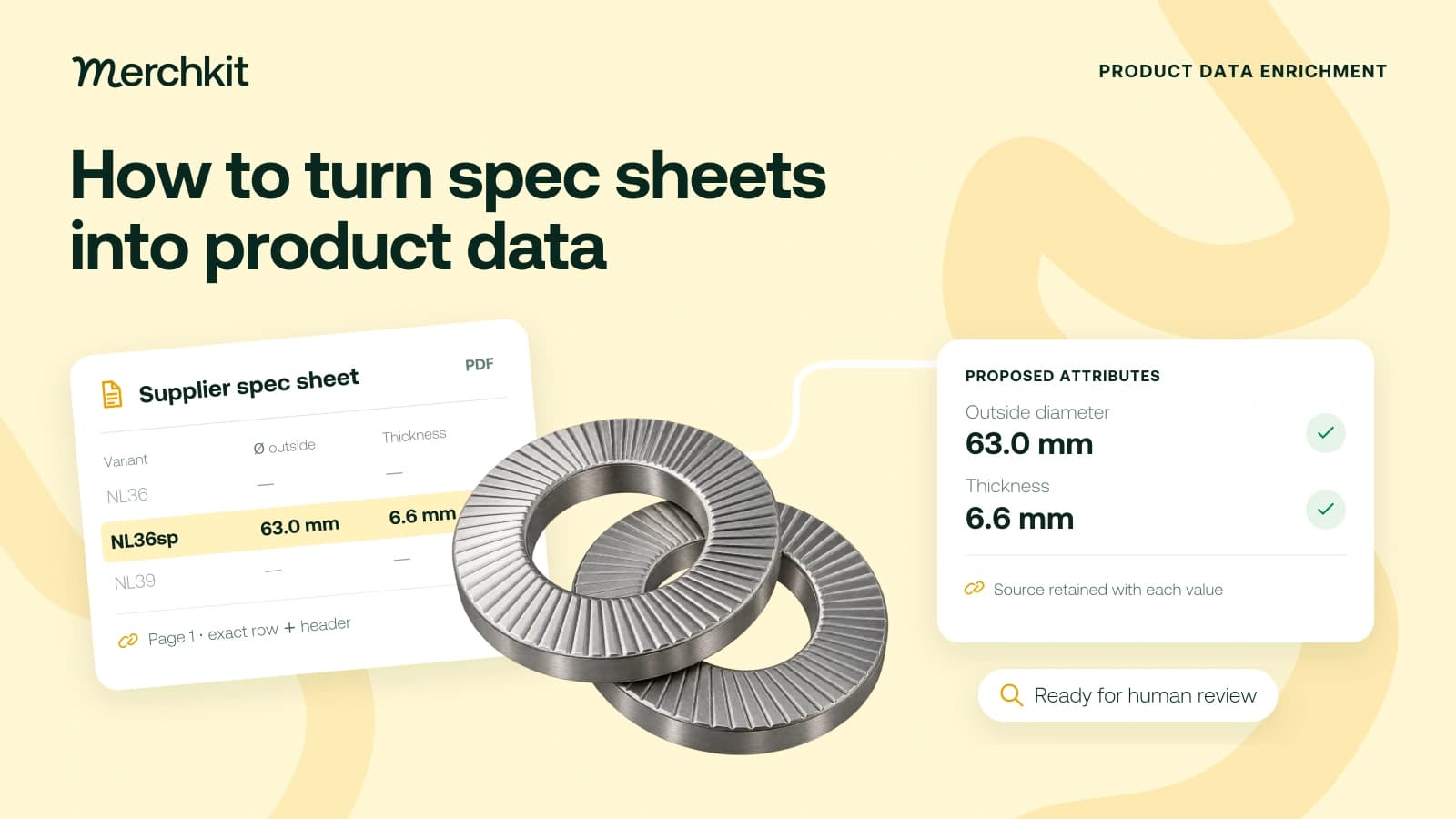
Our worked example uses page 1 of the Nord-Lock steel washer dimension sheet, accessed October 26, 2026. We want the NL36sp row, not the adjacent NL36 row. Dropping the "sp" suffix would send the reviewer to a different item.
The sheet has no printed revision date. It demonstrates the extraction task here; check the current manufacturer source before using it for availability or application decisions.
2 Read each value with its header and notes
For NL36sp, the table shows the catalog value and where to check it. For example, a reviewer questioning "63.0 mm" can go straight to the outside-diameter column on the correct row. These fields were prepared manually, not produced in a Merchkit test.
| Proposed field | Value to retain | Evidence on page 1 |
|---|---|---|
| Manufacturer type | NL36sp | Washer type column |
| Outside diameter | 63.0 mm | Target row and outer diameter header |
| Thickness T | 6.6 mm | Target row and thickness header |
| Thickness tolerance | +0.0 / -0.5 mm | Separate note for this thickness |
| Approximate weight | 9.15 kg per 100 pairs | Target row and complete weight header |
The thickness tolerance is the allowed difference from the stated thickness. Its value comes from a separate note, not just the product row. Copying the row without that note would leave out information needed to describe the measurement accurately.
Open the PDF page alongside the extracted text. Check which heading belongs to each number and whether a note changes its meaning. If optical character recognition, or OCR, reads a scanned sheet, compare the result with the image: software can read a number correctly and still put it in the neighboring column.
3 Separate extraction from conversion
Keep the original value before converting units or quantities. Here, 9.15 kg is an approximate weight for 100 pairs. It does not, by itself, establish the shipping weight of the unit you sell. Copying it into that unit's shipping-weight field without checking the quantity could lead to an incorrect shipping calculation.
If you need a different unit, store the converted value separately and save the calculation, original unit and rounding rule. A reviewer can then tell whether a mismatch came from the PDF or from the conversion, instead of having to reconstruct the calculation.
A manufacturer's minimum package, the quantity you sell and your warehouse stock answer different questions. "How does the manufacturer package it?" does not answer "How many will the customer receive?" Keep them in separate fields and connect them only when an approved source supports the relationship.
4 Leave unsupported fields unknown
The dimension sheet does not establish a product identifier such as a GTIN, your selling unit or live stock. Get those from their own approved sources. Otherwise, the product page can look complete while giving buyers an unsupported answer about what they are ordering.
A missing answer and an irrelevant question need different treatment. Leave an unsupported field blank or null and record why, such as "not stated in this source." Not knowing the selling unit does not mean the product has no selling unit.
Use "not applicable" only when the field genuinely does not apply. If the storefront requires an answer, get it corrected before publishing; an internal review label should not appear as product information.
Give an AI extraction tool the same boundary you would give a colleague: identify the exact model, copy only supported facts and show where each answer came from. For example:
"Return only attributes supported by this document for the exact target model. For each proposed value, include the raw text, unit, page, row label and qualifying note. Return null when support is missing or ambiguous."
Review the proposed values against the source, even when the tool reports high confidence. A confident value copied from the wrong row is still wrong. Compatibility, certifications and ratings need their own direct evidence, not an inference from similar dimensions or nearby models.
5 Make each field easy to review
Make the next person's check easy. Save the PDF page and row beside the proposed value, and include any note that changes it. For this washer, the outside diameter needs its row and column heading; the tolerance also needs the separate note.
Keep a review record with:
The source URL, saved file version, retrieval date and page.
The manufacturer code, field name, raw value, unit and qualifying text.
The proposed catalog value, any conversion and the review decision.
Save the source file too. If the supplier replaces the PDF at the same URL, your reviewer should still be able to see the version used for the import.
Mark each proposed value as accepted, corrected or held. Check the full part number, the heading and the relevant notes. If two approved sources disagree, keep both and assign the conflict for resolution instead of silently choosing the more convenient value.
Test more than the cleanest page before processing a supplier batch. Include a different layout, a row with an exception and a field the PDF does not supply. That shows whether the process handles the difficult cases and leaves missing answers unresolved. It does not prove every unreviewed SKU is correct.
For the broader problem of unsupported values, read how to stop AI from hallucinating product data.
How this gets done in Merchkit
Merchkit helps your team prepare source-backed product details without copying the same kinds of values from every supplier file. You can reuse the extraction instructions across a batch, then focus review on the facts buyers will see in specifications, filters and product descriptions.
Keep the supplier file with the product. Attach supplier PDFs or product-page sources to the matching records, so the material used to prepare a diameter or thickness stays with the item it describes.
Tell Merchkit what to prepare. Set up the attributes, meaning the product-detail fields, such as outside diameter and thickness. Specify the units and what to do when the source has no answer, then reuse those instructions across the batch.
Prepare missing details in bulk. Run enrichment, which generates proposed attribute values, on the selected products. Choose the empty-attributes option when you want to fill gaps without replacing values your team has already reviewed.
Check the explanations before handoff. Review why a value was proposed and its source references. Correct ambiguous results, then export the reviewed selection for the next catalog step. Your team still decides whether each value belongs on that product.
Book a Merchkit demo with a supplier file to see how this workflow could work for your catalog.