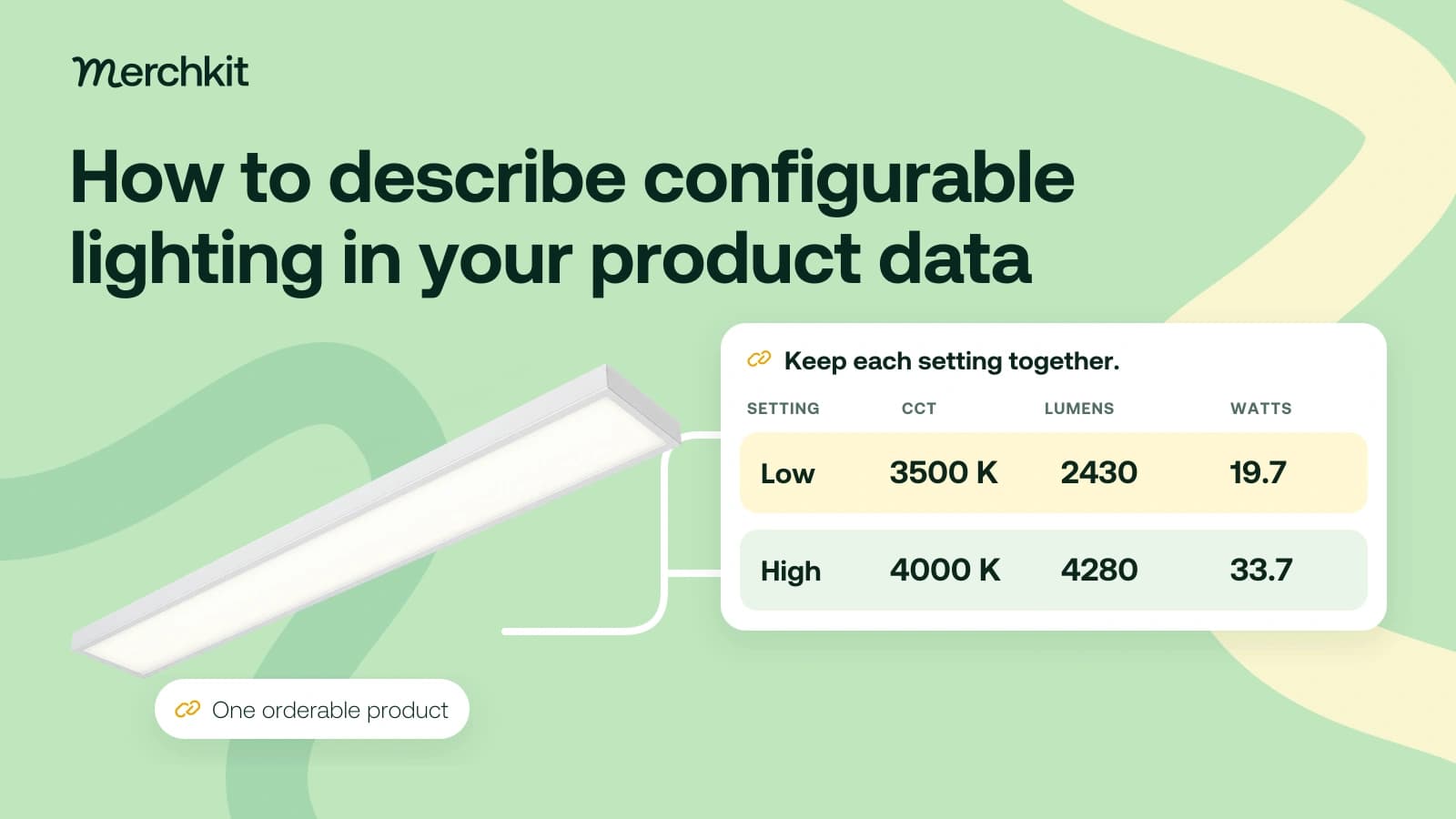
A lighting buyer compares how much light a fixture produces with how much power it uses. If your catalog pairs 4280 lumens with 19.7 watts from a different setting, that comparison starts from a combination the manufacturer has not specified. Keep each setting's numbers together so the page does not imply one setting's brightness at another setting's lower power use.
Key takeaways
- A fixture with several settings is not necessarily several products a buyer can order. Keep one product record unless the supplier identifies separate items.
- Pair each color-temperature and lumen setting with its own lumens and watts. Do not combine the brightest output with another setting's lower power figure.
- Keep test conditions and model limits with the claims. Check that ratings and downloadable technical files cover the exact version you sell.
The mistake can appear in comparison tables, filters and generated descriptions even when every copied number exists in the supplier PDF. Before enriching the product copy, separate the item a customer can order from the settings available within that item.
Keep the orderable product separate from its settings
The CPX specification lists one orderable item, CPX 1X4 ALO7 SWW7 M4, UPC 194994568063, with selectable 3500, 4000 and 5000 K color-temperature settings. Link that full manufacturer code to your internal SKU so the settings belong to the correct product.
Those choices do not automatically make three products. If you turn each switch position into a separate child SKU, the catalog could appear to offer distinct items that the supplier has not listed for order. Keep the settings within the product unless the supplier explicitly identifies separate orderable versions.
If your catalog system expects one value per field, keep a linked settings table as the reference. That preserves the choices without inventing product identities simply to fit the import template.
Pair lumens and watts with the selected setting
In the table, lumens describe light output and watts describe power use. Correlated color temperature, or CCT, is the color-temperature setting expressed in kelvin (K). Each row keeps those values with the selected lumen setting.
These four rows are a manually prepared selection from page 2 of the specification.
| Lumen setting | CCT in K | Lumens | Watts |
|---|---|---|---|
| Low | 3500 | 2430 | 19.7 |
| Low | 4000 | 2594 | 19.7 |
| High | 4000 | 4280 | 33.7 |
| High | 5000 | 4009 | 35.5 |
Compare the proposed description "5000 K, 4280 lumens, 19.7 W" with the rows above. The 4280-lumen value belongs to High at 4000 K and 33.7 W. The 19.7 W values shown belong to Low settings. Combining them gives a buyer a brightness-and-power comparison that the selected source rows do not support.
Give each supported combination its own row under the full product code, with the lumen setting and color temperature. Keep that row's lumens and watts together, plus the source page and revision. A range such as "19.7 to 35.5 W" alone would not tell a buyer which light output goes with each power value.
Apply the same rule to efficacy, the amount of light output per unit of power. Keep the manufacturer's efficacy value with its setting row. Combining the best efficacy figure with the highest lumen figure could misrepresent how that selected setting performs.
Show which settings are available without implying how the product arrives. The first row in a PDF is not evidence of the factory default. If buyers need to know the shipped setting, get an explicit source for that item.
Instructions about changing settings need their own support too. A performance table does not explain how to install or adjust the fixture.
Keep qualifications with the performance claim
Keep the conditions attached to the numbers. The CPX sheet describes them as design or typical laboratory values at 25 degrees Celsius and says actual performance can vary. Presenting them as unconditional results would give the buyer more certainty than the manufacturer provides.
The sheet also says DesignLights Consortium (DLC) qualification does not apply to every version. A badge copied from the product family could therefore describe a different item. Record the exact model or configuration covered, the source and whether the claim has been reviewed.
Keep unresolved ratings out of public copy. Do not borrow dimmer compatibility, beam angle or application suitability from nearby products to fill the gaps.
A photometric file contains technical information about a light's output and distribution. Do not attach one merely because it appears on the family page. Confirm that it covers the catalog code and configuration you sell, or a buyer could download specifications for a different version. Keep an unresolved match marked unverified internally.
Use setting specific values in filters and descriptions
Label a filter Available color temperature, rather than showing an unexplained CCT value. It can list the supported choices without suggesting that the fixture runs at all of them at once.
For comparisons, show a selected setting and its paired lumens and watts. If the page accepts only one number, say which setting it describes instead of silently choosing the maximum.
Tell a copy generator to take output and wattage from the same reviewed row. For example, it can use the High, 4000 K row's 4280 lumens and 33.7 W together. It should not replace that wattage with the lower 19.7 W figure from another setting.
Test that rule before processing more products. Include a deliberately mixed combination, then check for invented child SKUs, missing test conditions and files attached to the wrong version. These errors can all survive a simple check that every field contains something.
How this gets done in Merchkit
Merchkit helps prepare product details and copy across a selected lighting batch, reducing repeated field-by-field drafting. Give it the source and clear instructions about which values belong together, then review the proposed descriptions against the setting rows.
Start with the matching specification. Attach it as a source and confirm the full catalog code. A family document may cover several versions, so the instructions need to identify the one you sell.
Define the details to prepare. Configure custom attributes, the product-detail fields or summaries you need, with reusable instructions. Require output and wattage from one matching row, and keep the source's test conditions with the answer.
Prepare missing details across the batch. Run empty-only enrichment on selected products while preserving populated fields. Keep the reviewed settings table available so the team can check the generated summaries against the same reference.
Review the comparison the buyer will see. Review the output and rationales, the explanations for proposed content, against the specification. Check brightness and power together, and verify ratings and technical-file matches separately before using accepted content downstream.
Book a Merchkit demo with a selectable lighting sample to discuss enrichment that preserves the relationship between the product, its settings and its performance data.