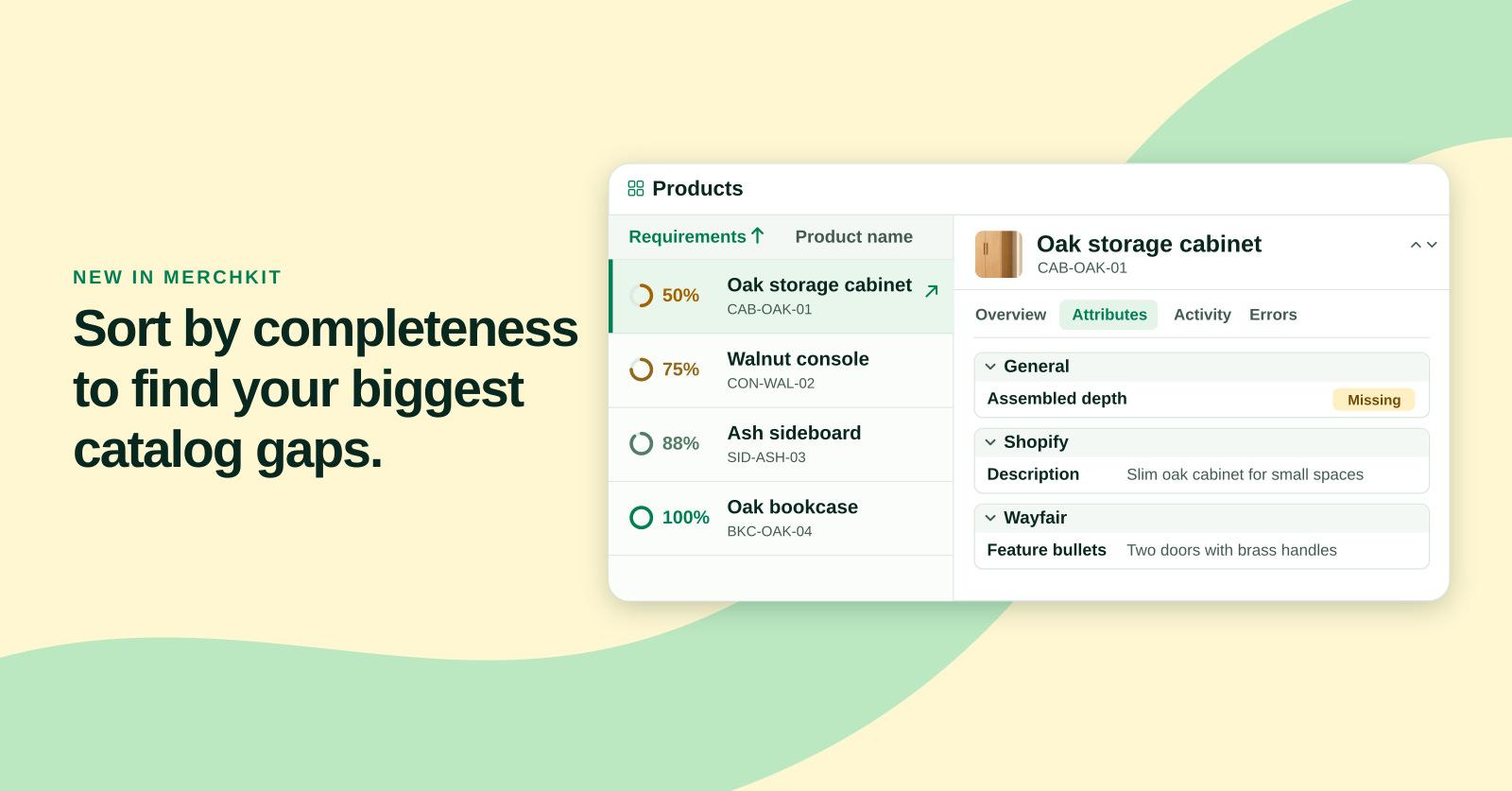
When a collection has dozens of products, reading every listing is a slow way to find what’s missing. A blank cabinet depth might go unnoticed until a shopper asks whether it fits. In Merchkit, start with the least complete products, then open each product to see what you already have and what still needs work.
- Sort Requirements from least to most complete to see which products need a look.
- Use Product Overview to see general attributes and content grouped by channel, alongside images and sources.
- Fix the gaps that matter to shoppers first, using the source for the exact product.
1. Find the products that need attention
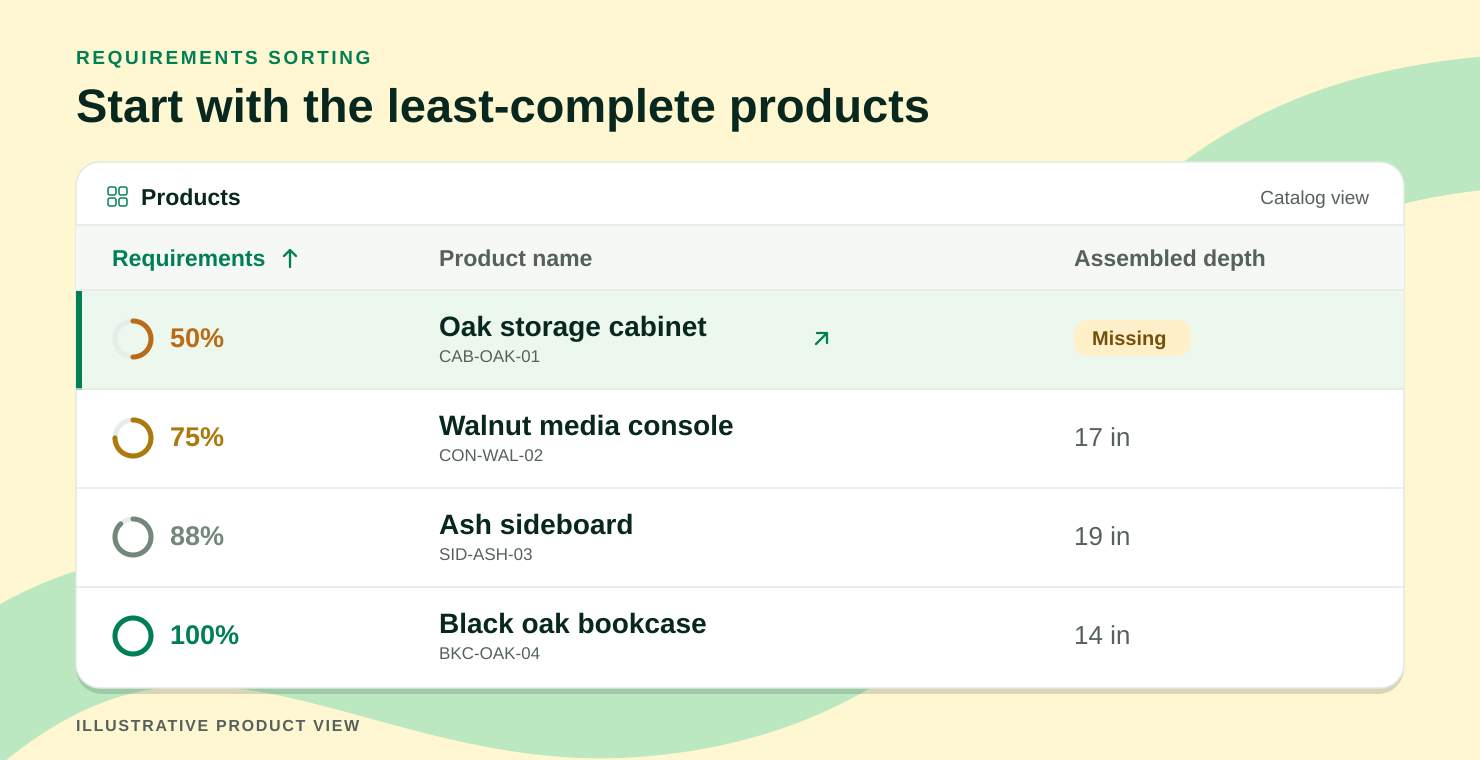
In your catalog, sort the Requirements column ascending. Products with the lowest share of filled fields appear first. The sort includes all enabled fields, even optional ones. A filled field counts even if the information is wrong, so use the sort to decide where to begin.
If you’re reviewing cabinets for small spaces, look for the details shoppers use to check the fit. An empty assembled-depth field may need attention before an optional finish description.
2. Get the full picture for one product
Open a row’s Product Overview using the expand control, or press Spacebar with the row focused. In the read-only panel, you can see product images and sources, then open Attributes to review general product details and content grouped by channel. Search for Depth or open a retailer’s section to read the description you’ve already created for that channel. You don’t have to add columns or switch catalog views.
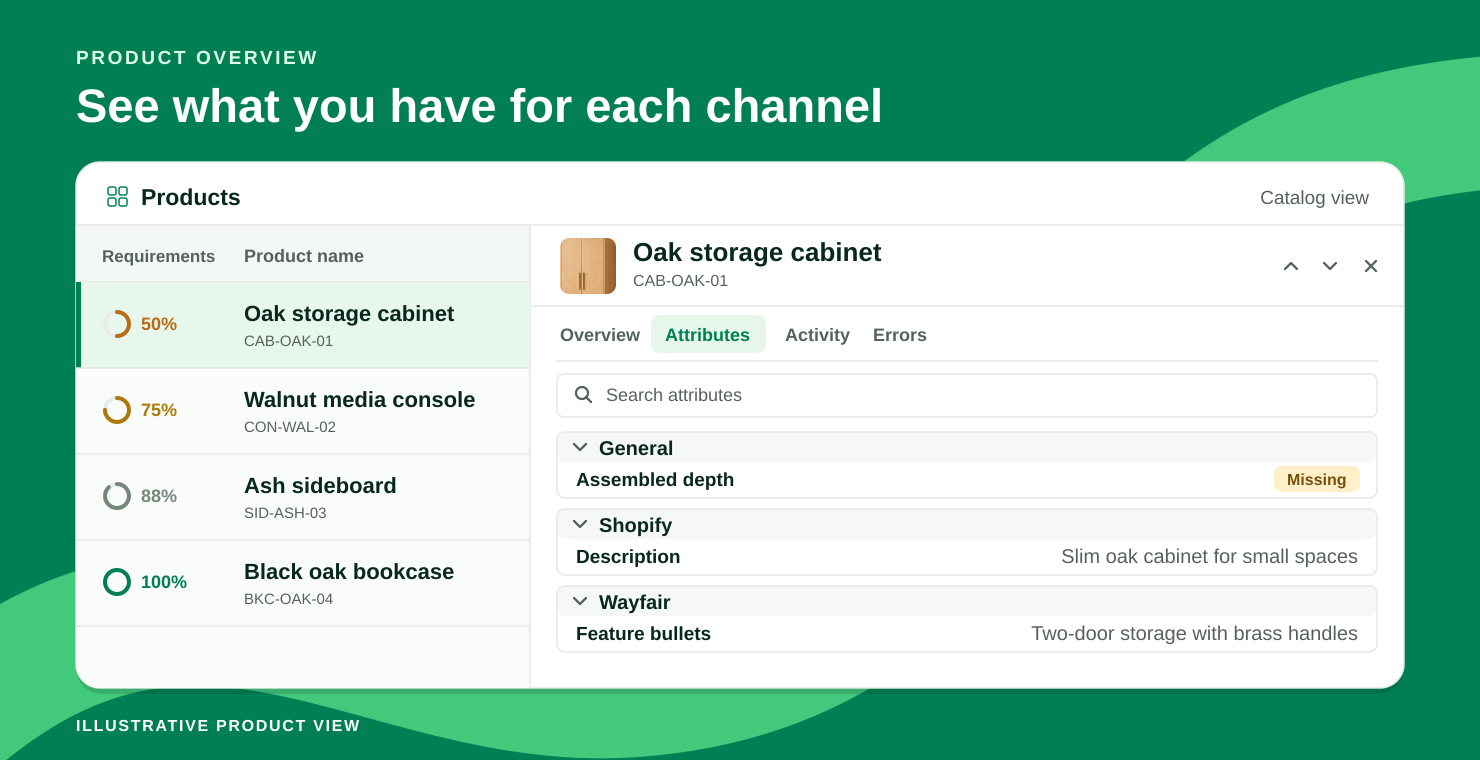
Suppose you find a blank Depth field alongside a retailer description that calls the cabinet “slim.” Open the supplier’s spec sheet for that model. If it lists 16 inches assembled and 19 inches for the shipping carton, use 16 inches for assembled depth. Keep the carton measurement separate.
3. Fix the gap in the catalog
Return to your usual catalog view to enter the confirmed measurement. If the sheet doesn’t say which model the number belongs to, leave the field blank until you can confirm it.
How this gets done in Merchkit
- Sort by Requirements to decide which products to review first.
- Use Product Overview to compare what’s already in the catalog with the product’s source material, then use the up and down controls to move through your current view.
- Make the correction in the catalog so your team has the right detail to use wherever customers compare that product.
Want to try this with your own catalog? Book a Merchkit demo.